
How to Sell on Instagram Shop: A 2026 Step-by-Step Guide

Table of Contents
- What You Need Before You Start Selling on Instagram Shop
- How to Sell on Instagram Shop: The Complete Setup Process
- Understanding the Instagram Shop Approval Process
- Best Practices for Instagram Product Tags That Drive Sales
- Instagram Shopping Tools for Business: Integrations and Automation
- How to Sell More on Instagram Shop: Conversion Optimization and Analytics
- Common Mistakes to Avoid When Setting Up Instagram Shopping
- Conclusion
Last Updated: May 19, 2026
Social commerce has fundamentally changed how small businesses reach buyers, and knowing how to sell on instagram shop is now one of the most practical skills an e-commerce seller can develop. This guide from Embed360 walks you through every step of the process, from account setup to post-launch conversion tactics that most tutorials skip entirely. Below, you’ll find the complete 2026 setup process, the approval pitfalls nobody warns you about, and the integration strategies that separate shops generating consistent revenue from ones that stall after launch.
Here’s what most guides get wrong: they treat Instagram Shopping as a simple feature you switch on. It’s actually a multi-platform ecosystem involving Meta’s Commerce Manager, a Facebook Business Page, and a product catalog that all have to talk to each other correctly. Get one piece wrong and your shop sits in limbo.
According to Meta’s official Commerce Manager documentation, sellers must meet specific commerce eligibility policies before their shop goes live. That review process can take anywhere from a few days to several weeks, and understanding it upfront saves a lot of frustration.
What You Need Before You Start Selling on Instagram Shop
Getting your prerequisites sorted before touching Commerce Manager saves hours of backtracking. Instagram Shopping is only available to accounts that meet Meta’s commerce eligibility requirements, and skipping this checklist is the single most common reason shops get rejected or stuck in review.
Eligibility Requirements for Instagram Shopping
Instagram Shopping eligibility requires that your account operates in a supported market, sells physical goods (not services), complies with Meta’s Commerce Policies, and is connected to a Facebook Business Page. Digital-only products, adult content, and certain regulated goods are explicitly excluded.
The core eligibility checklist looks like this:
- Your business is located in a Meta-supported market for Instagram Shopping
- You sell physical, eligible products only
- Your account complies with Meta’s Commerce Policies and Community Guidelines
- You have a connected Facebook Business Page (personal pages don’t qualify)
- Your Instagram account has a sufficient history of activity (new accounts with zero posts rarely pass review)
- Your website domain is verified in Business Manager
A common mistake is assuming that any product can be listed. Meta’s restricted items list is longer than most sellers expect, covering everything from weapons and tobacco to certain health claims. Review it before building your catalog.
Converting to a Business or Creator Account
A personal Instagram account cannot connect to Commerce Manager. You must switch to either a Business Account or a Creator Account before any shopping features become available.
To convert: go to your Instagram profile settings, tap "Account," then select "Switch to Professional Account." Choose Business if you’re running a brand or store. Choose Creator if you’re an individual selling your own work. Both account types unlock Instagram Insights and the ability to connect to a Facebook Business Page.
Business Account is the better choice for most sellers. It gives you access to the full Meta Business Suite, shopping ads, and third-party integrations that Creator accounts sometimes restrict.
If you already have a Creator Account and want to run shopping ads, you’ll need to switch to Business. Creator accounts support product tags but have more limited ad capabilities. Make this decision before you build your catalog.
How to Sell on Instagram Shop: The Complete Setup Process
The setup process for Instagram Shopping runs across three platforms simultaneously: Instagram, Facebook, and Meta’s Commerce Manager. Each step builds on the previous one, so sequence matters.
Total Time: 2-4 hours initial setup, plus review wait time
Difficulty: Intermediate
A person sitting at a clean, well-lit home office desk, setting up an Instagram shop on their smartphone and laptop simultaneously, with neatly arranged handmade ceramic products placed beside the devices, warm natural light coming through a nearby window

Step 1: Connect Instagram to a Facebook Business Page
Instagram Shopping requires a linked Facebook Business Page. Without this connection, Commerce Manager has no way to verify your business identity.
- Open Meta Business Suite at business.facebook.com
- Create a Business Page if you don’t have one (use your actual business name)
- In Instagram settings, go to "Account" then "Linked Accounts"
- Select Facebook and log in with the account that owns your Business Page
- Confirm the connection in both platforms
The thing nobody tells you: the Facebook Page must be published and active. A page in draft status will block the Commerce Manager connection. Publish at least a basic page with your business name, category, and a profile image before proceeding.
Step 2: Set Up Commerce Manager and Create Your Product Catalog
Commerce Manager is the backend hub where your product catalog lives. Everything in your Instagram Shop pulls from here.
- Go to business.facebook.com/commerce
- Select "Get Started" and choose "Create a Shop"
- Choose your checkout method: Checkout on Instagram (US only), checkout on your website, or checkout via direct message
- Connect your Facebook Business Page and Instagram account
- Create a new catalog or connect an existing one
- Complete the merchant agreement and submit for review
Checkout on Instagram keeps the entire purchase flow inside the app, which generally produces higher conversion rates because buyers never leave the platform. This feature is currently limited to US-based sellers with eligible accounts. Sellers outside the US will route buyers to their website checkout instead.
Your Product Catalog is the database of all items you’ll sell. You can populate it manually, via a data feed, or by syncing from an e-commerce platform like Shopify. The catalog sync route is significantly faster if you have more than 20 products.
Do NOT create multiple catalogs for the same shop. Meta’s system flags duplicate catalogs during review and it can delay approval by weeks. Create one catalog, organize it with collections, and manage everything from there.
Step 3: Add Products and Customize Your Shop Layout
With your catalog connected, you can add individual products or bulk upload via a CSV or data feed. Each product listing needs:
- A clear product title (descriptive, not keyword-stuffed)
- A complete product description
- At least one high-quality image (1:1 ratio recommended)
- Price and currency
- Inventory quantity
- A product URL pointing to your website
Shop customization happens inside Commerce Manager under the "Shop" tab. You can organize products into Product Collections (themed groupings like "New Arrivals" or "Best Sellers"), choose a featured collection for your shop’s hero section, and control which products appear on your Instagram profile’s Shopping tab.
The shop layout directly affects product discovery. Sellers who organize products into logical collections tend to see higher average order values because browsers find related items without leaving the shop.
Understanding the Instagram Shop Approval Process
The Instagram shop approval process is not instant, and misunderstanding it causes more seller frustration than any other part of the setup. Here’s how it actually works.
After you submit your shop in Commerce Manager, Meta reviews your account against its Commerce Policies. This review typically takes a few business days for straightforward accounts, but can extend to several weeks if your account is new, your product category is borderline, or your website doesn’t clearly display required information like a return policy and contact details.
What Meta checks during review:
- Your Instagram account’s age and activity history
- Whether your website has a privacy policy, return policy, and contact page
- Whether your products comply with Commerce Policies
- Whether your domain is verified in Business Manager
- Whether your business information is consistent across platforms
The most common rejection reasons are missing website policies and domain verification issues. Fix these before submitting. If your shop is rejected, Meta provides a reason and allows you to appeal. Many rejections are reversed on appeal when sellers add the missing policy pages.
Domain verification is the step most sellers skip. Go to Meta Business Suite, navigate to Brand Safety, and verify your domain with a DNS record or HTML tag before submitting your shop for review.
Best Practices for Instagram Product Tags That Drive Sales
Product tags are how Instagram Shopping connects your content to your catalog. A tagged post or story lets viewers tap a product sticker and go directly to the product detail page without searching. Used well, they’re one of the highest-converting features in social commerce.
The best practices for Instagram product tags center on context and relevance. Tags work best when the product is actually visible in the image or video, not just mentioned in the caption. A flat-lay photo of your product with a clean tag converts significantly better than a lifestyle shot where the item is barely visible.
Practical tagging guidelines:
- Tag no more than 3-5 products per post to avoid visual clutter
- Place tags directly on the product, not in empty space
- Use tags in both the post and the caption for maximum visibility
- Refresh older posts by adding tags to high-performing content
Using Product Tags in Reels, Stories, and Live Shopping
Instagram Reels with product tags reach audiences beyond your followers through the Explore feed, making them the highest-reach format for product discovery. Tag products in the first few seconds of a Reel to capture viewers before they scroll.
In Instagram Stories, the product sticker appears as a tappable overlay. Stories disappear after 24 hours, so use them for time-sensitive promotions or new product launches where urgency matters. Save high-performing shopping Stories to your Highlights so they continue driving traffic.
Live Shopping lets you tag products in real time during a broadcast. Viewers can tap and purchase without leaving the stream. This format works especially well for product demonstrations, unboxings, and limited-edition drops. According to Meta’s guide to Live Shopping best practices, sellers who demonstrate products live and answer questions in real time see significantly higher engagement than pre-recorded content.
The Reels-Stories-Live combination is the most complete approach to product discovery on Instagram. Reels build awareness, Stories drive urgency, and Live Shopping closes the sale.
Instagram Shopping Tools for Business: Integrations and Automation
Manual catalog management is the fastest way to burn out on Instagram Shopping. The platform is designed to work with third-party e-commerce integrations, and using them correctly is what separates sellers who scale from sellers who stall. Most guides mention that integrations exist. This section gives you the actual workflow for each major platform.
Instagram shopping tools for business fall into two categories: native integrations (Shopify, BigCommerce, WooCommerce) that connect directly through Meta’s partner program, and multi-channel feed tools that sync across multiple sales channels simultaneously.
Shopify → Instagram Shop: The Full Workflow
Shopify has the tightest native integration with Meta’s Commerce Manager, and it is the recommended path for any seller already on Shopify.
Setup steps:
- In your Shopify admin, go to Sales Channels and click the + icon
- Search for and add Facebook & Instagram (the official Meta channel app)
- Connect your Facebook Business account and select the Business Page and Ad Account you want to link
- Under Data sharing, set the pixel sharing level to Maximum, this is what enables catalog-level retargeting later
- In the Shop tab, select the Shopify product collections you want to sync to your Instagram catalog
- Submit for account review inside the channel app
Once connected, Shopify pushes product titles, descriptions, images, prices, variants, and inventory levels to Commerce Manager automatically. A price change in Shopify reflects in your Instagram Shop typically within a few minutes. Variant-level data (size, color, material) syncs as product options, which means buyers can select variants directly on the Instagram product detail page without visiting your website.
What Shopify sync does NOT handle automatically:
- Custom metafields you’ve added to products (these require a feed override or manual entry in Commerce Manager)
- Products in draft status in Shopify, only published products sync
- Collections set to manual sorting may display in a different order in Commerce Manager than in your Shopify storefront
If you use Shopify Markets for multi-currency pricing, be aware that Commerce Manager will pull your store’s primary currency. Buyers in other regions will see prices in your base currency, not their local one. This is a known limitation of the native integration and is not resolved by enabling Shopify Markets alone.
WooCommerce → Instagram Shop: Feed-Based Sync
WooCommerce does not have a direct native integration with Meta Commerce Manager the way Shopify does. The standard approach is a product feed, which Commerce Manager polls on a schedule to update your catalog.
Setup steps:
- Install a product feed plugin in WordPress. The most widely used options are WooCommerce Google Product Feed plugins that output a Meta-compatible XML or CSV feed, or dedicated Meta feed plugins available in the WordPress plugin directory
- Configure the feed to include all required Meta catalog fields:
id,title,description,availability,condition,price,link,image_link,brand - In Commerce Manager, go to Catalog → Data Sources → Add Items → Use a Data Feed
- Paste your feed URL and set the fetch schedule (hourly is available; daily is the default)
- Run a manual fetch first to validate the feed and catch field mapping errors before your shop goes live
The key trade-off with feed-based sync: there is always a lag between a change in WooCommerce and when it appears in your Instagram catalog. On an hourly fetch schedule, a product you mark out of stock in WooCommerce could still appear as available in your Instagram Shop for up to 60 minutes. For high-velocity sellers or limited-edition drops, this lag creates real overselling risk.
To mitigate this, use the Commerce Manager API or a real-time sync plugin to push inventory updates immediately on stock changes, rather than waiting for the scheduled feed fetch.
If your WooCommerce store uses variable products with many variants, verify that your feed plugin outputs each variant as a separate item with a unique `id` and an `item_group_id` linking it to the parent product. Commerce Manager requires this structure. Feeds that output only the parent product without variant rows will result in a catalog that shows products but cannot display size or color selectors to buyers.
BigCommerce → Instagram Shop: Native Channel Manager
BigCommerce offers a native Meta integration through its Channel Manager, similar in concept to Shopify’s approach but with some differences in how catalog rules are applied.
Setup steps:
- In your BigCommerce admin, go to Channel Manager → Marketplace → Facebook & Instagram
- Connect your Meta Business account and authorize the required permissions
- Select which BigCommerce product categories or custom product groups to sync
- Map your BigCommerce product fields to Meta catalog fields, BigCommerce’s Channel Manager includes a field mapping interface that lets you override defaults (useful if your product descriptions are formatted for BigCommerce search rather than Instagram display)
- Enable the channel and submit for Commerce Manager review
BigCommerce’s integration syncs in near real-time for price and inventory changes. One advantage over the WooCommerce feed approach is that BigCommerce pushes updates to Meta rather than waiting for Meta to pull them, which reduces the lag window significantly.
Etsy → Instagram Shop: The Missing Bridge
Etsy does not have a native Commerce Manager integration. Etsy sellers who want an Instagram Shop face a manual export-import cycle by default: download a CSV from Etsy, reformat it to meet Meta’s catalog field requirements, and upload it manually. This process breaks every time you update a listing.
This is exactly where Embed360 fills the gap. Embed360 syncs Etsy product listings, images, pricing, and inventory to Instagram and Facebook shops in real time, with one-click setup that eliminates the manual cycle. Its AI-powered listing optimization also rewrites product titles and descriptions to perform better in Instagram’s product discovery algorithm, not just Etsy search.
Choosing the Right Sync Approach: A Decision Framework
| Platform | Integration Type | Sync Speed | Variant Support | Best For |
|---|---|---|---|---|
| Shopify | Native (push) | Near real-time | Full variant sync | Sellers with 20+ SKUs, frequent price changes |
| BigCommerce | Native (push) | Near real-time | Full variant sync | Mid-to-large catalogs with complex product rules |
| WooCommerce | Feed-based (pull) | Up to 60 min lag | Requires correct feed config | Sellers with stable inventory, lower update frequency |
| Etsy | Third-party tool required | Real-time (with Embed360) | Syncs Etsy variations | Handmade/craft sellers on Etsy |
| Manual CSV | Manual upload | On-demand only | Manual entry | Sellers with fewer than 20 products, infrequent updates |
The key principle: the more frequently your prices, inventory, or product lineup change, the more you need a push-based or real-time sync. A feed that updates once daily is fine for a stable catalog of 50 products. It is a liability for a seller running flash sales or managing limited stock.
If you’re managing products across multiple platforms simultaneously, a real-time sync tool isn’t optional, it’s risk management. A price discrepancy between channels creates customer service problems and can trigger Meta’s price consistency policy review, which can result in your shop being temporarily restricted.
How to Sell More on Instagram Shop: Conversion Optimization and Analytics
Setting up your shop is the starting line, not the finish. Most guides stop at setup. Here’s where the actual revenue work begins.
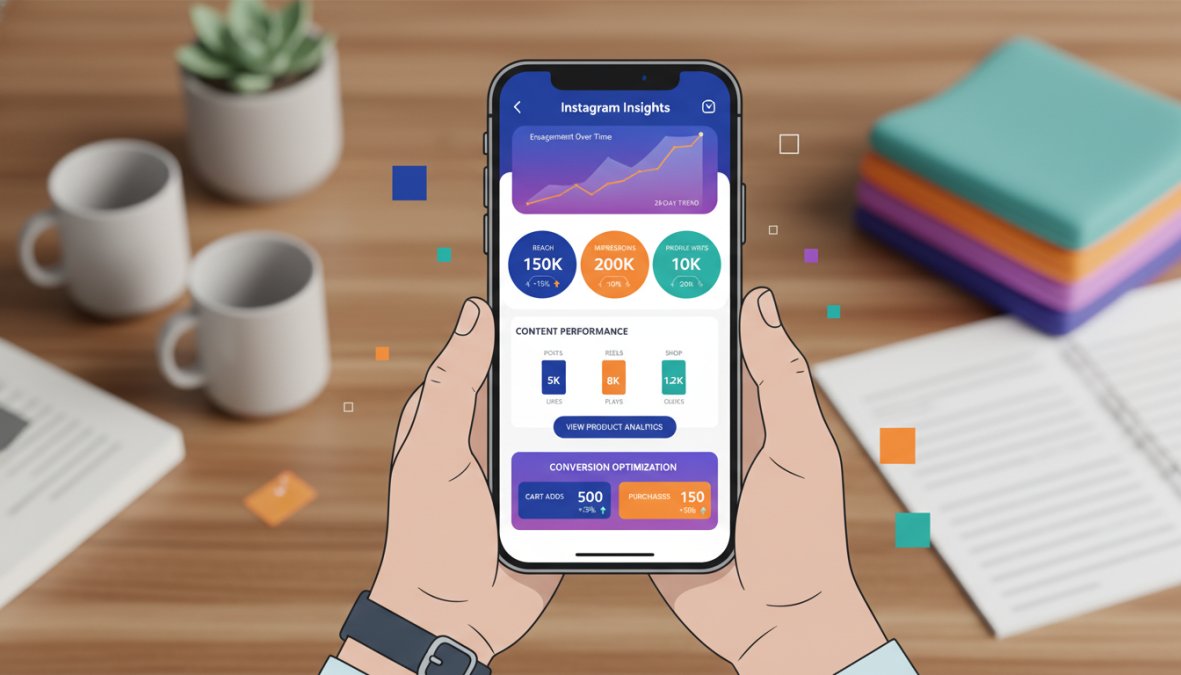
Post-setup conversion optimization focuses on three levers: product presentation, content consistency, and checkout friction. Of the three, checkout friction is the most underrated. If your shop routes buyers to a website with a slow load time or a complicated checkout, you’re losing sales that Instagram’s algorithm already delivered to you.
How to Read Instagram Insights Specifically for Shop Performance
Instagram Insights and Meta Business Suite surface different layers of data, and most sellers look at the wrong numbers. Vanity metrics like follower count and total post likes tell you almost nothing about shop revenue. The metrics below are the ones that map directly to purchase behavior.
Where to find shop-specific data:
- Instagram app → Professional Dashboard → Insights → Content You’ve Shared, post-level data including product tag taps
- Meta Business Suite → Commerce Manager → Insights, catalog-level data including product views, product page taps, and (for US sellers with Checkout on Instagram) purchase data
- Meta Business Suite → Ads Manager, if you’re running Shopping ads, this is where you see cost-per-click and return on ad spend at the product level
The metrics that matter most for Instagram Shopping:
| Metric | Where to Find It | What It Actually Tells You | Action Trigger |
|---|---|---|---|
| Product Page Taps | Commerce Manager Insights | How many people tapped through to a specific product’s detail page | If a product gets high taps but low purchases, the problem is on your website (price, description, or checkout), not on Instagram |
| Shopping Tag Clicks | Instagram Insights (per post) | Whether your tag placement and product selection are working | Low tag clicks on a high-reach post means the product isn’t resonating with that audience, or the tag is placed poorly |
| Checkout Initiations vs. Purchases | Commerce Manager (US Checkout only) | The drop-off rate between intent and completion | A large gap here points to checkout friction, shipping cost surprises, required account creation, or slow page load |
| Reach per Reel vs. Reach per Feed Post | Instagram Insights | Which format is distributing your content beyond existing followers | If Reels reach is 3-5x your feed post reach, shift your product tagging effort to Reels |
| Product Views by Catalog Item | Commerce Manager → Catalog → Items | Which products are being discovered organically | High-view, low-tap products have a presentation problem (weak thumbnail image or unclear title) |
| Profile Visits from Posts | Instagram Insights (per post) | Whether content is driving people to explore your shop | High profile visits with low Shopping tab visits means your profile isn’t clearly directing people to your shop |
How to use this data in practice:
The most actionable diagnostic is the tap-to-purchase funnel. Trace a single product through three stages:
- How many people saw content featuring this product? (Reach)
- Of those, how many tapped the product tag? (Tag Click Rate)
- Of those, how many completed a purchase? (Conversion Rate)
If the drop-off is between stages 1 and 2, the content isn’t making the product compelling enough to tap. Test a different image format, a closer product shot, or a Reel instead of a static post.
If the drop-off is between stages 2 and 3, the problem is off-Instagram, your product page, pricing, or checkout process. Instagram delivered the buyer. Your website lost them.
Check these metrics weekly, not daily. Daily fluctuations create noise driven by posting time, algorithm variance, and day-of-week behavior patterns. Weekly trends reveal patterns you can act on. Set a recurring 30-minute weekly review: pull your top 5 products by page taps, identify the one with the worst tap-to-purchase ratio, and make one specific change to its product page or checkout flow.
Post-Setup Conversion Optimization: The Three Levers
Lever 1: Product Presentation
Your product thumbnail image is the single highest-leverage element in your catalog. In Commerce Manager’s product grid and in Instagram’s Shopping tab, buyers make tap decisions based on the thumbnail before reading a title or price.
Practical standards for product images that convert:
- Use a 1:1 aspect ratio for catalog images (square crops display consistently across all Instagram surfaces)
- Show the product against a clean, uncluttered background for the primary catalog image, lifestyle shots work better as secondary images
- Ensure the product fills at least 70% of the frame; small products lost in a wide shot get scrolled past
- If you sell apparel or wearables, on-model images consistently outperform flat-lay images for tap-through rate in most product categories
For product titles in your catalog, write for how buyers search, not how you categorize internally. "Blue Ceramic Pour-Over Coffee Dripper" outperforms "Item #4421, Dripper" in both Instagram’s product search and in ad targeting.
Lever 2: Content Consistency
Instagram’s algorithm treats your shop as an active or inactive signal. Shops that publish tagged content regularly, at minimum two to three times per week, maintain higher placement in the Shopping tab and in product discovery surfaces like the Explore feed.
Content consistency doesn’t mean posting the same product repeatedly. It means maintaining a regular cadence of tagged content across formats: a Reel demonstrating a product, a Story with a product sticker for a limited promotion, a carousel post showing multiple products from the same collection. Each format reaches a different segment of your audience and feeds different parts of Instagram’s recommendation system.
Lever 3: Checkout Friction
For US sellers using Checkout on Instagram, the in-app checkout removes the biggest friction point: leaving the platform. If you’re on website checkout, your website’s performance directly determines your conversion rate from Instagram traffic.
The most common checkout friction points for Instagram-referred traffic:
- Slow mobile page load: Instagram traffic is almost entirely mobile. A product page that takes more than three seconds to load on a mobile connection loses a significant portion of buyers before the page finishes rendering
- Forced account creation: Requiring buyers to create an account before purchasing is one of the most reliably conversion-killing checkout patterns. Enable guest checkout
- Shipping cost reveal at checkout: Buyers who discover unexpected shipping costs at the final checkout step abandon at high rates. Display shipping costs or a free shipping threshold clearly on the product page itself
- Currency mismatch: International buyers who see a price in a currency they don’t recognize often abandon without completing purchase. If you serve multiple regions, display prices in local currency where possible
Regional and Currency Limitations to Know Before You Scale
This is the part most guides skip entirely, and it causes real problems for sellers trying to grow internationally.
Instagram Shopping is not available in all countries. Checkout on Instagram is currently limited to US sellers. Sellers in other supported markets can use Instagram Shopping with website checkout, but the in-app purchase experience is not available to them. Currency is determined by your Commerce Manager settings and must match your business’s operating country.
If you’re selling internationally, be aware that:
- Product prices display in your catalog’s set currency, not the buyer’s local currency, unless you configure multi-currency pricing through your e-commerce platform
- Shipping and tax configurations in Commerce Manager are region-specific and must be set up separately for each market you serve
- Some product categories face additional restrictions in certain markets (health products, supplements, and certain cosmetics face stricter review in the EU and UK)
- Influencer and affiliate marketing campaigns may be subject to local disclosure laws (the FTC in the US, the ASA in the UK, and equivalent bodies in other markets), product tags in sponsored content must be disclosed appropriately
Sellers who expand internationally without addressing these limitations often face abandoned carts from buyers confused by currency conversion or unexpected shipping restrictions. Set up clear shipping policies in Commerce Manager and consider geo-targeted content, separate Stories or Reels directed at your largest international markets, so buyers in those regions see relevant shipping and pricing information before they tap through to your shop.
According to Statista’s global social commerce revenue data, social commerce revenue is growing across all major markets, but the infrastructure supporting that growth varies significantly by region. Understanding where your buyers are and what checkout experience they’ll encounter is foundational to scaling beyond your home market.
Common Mistakes to Avoid When Setting Up Instagram Shopping
Most Instagram Shop failures are preventable. After working through the setup process and watching where sellers consistently stumble, the same mistakes surface repeatedly.
1. Skipping domain verification. Commerce Manager requires your website domain to be verified. Many sellers submit their shop before completing this step and then wait weeks for a rejection they could have avoided.
2. Using inconsistent business information. Your business name, address, and contact details must match across your Instagram profile, Facebook Business Page, and website. Discrepancies trigger manual review.
3. Building a catalog with incomplete product data. Products missing descriptions, prices, or compliant images get flagged during catalog review. Fill every required field before submitting.
4. Ignoring the Commerce Policy on restricted items. Sellers list products that violate Meta’s policies without realizing it, then face shop suspension rather than a simple rejection. Read the policy before building your catalog.
5. Treating the shop as a one-time setup. Instagram’s algorithm favors shops with regular new products, fresh content with product tags, and active engagement. A shop you set up once and ignore will see declining organic reach within weeks.
6. Neglecting post-purchase experience. Instagram Shopping drives the click. Your website and fulfillment process close the sale and determine whether that buyer returns. A poor post-purchase experience undermines everything the shop setup achieves.
7. Over-tagging posts. Tagging every product in every post trains your audience to ignore the tags. Be selective. Tag products when the content genuinely features them.
The real difference between a shop that generates consistent revenue and one that sits dormant comes down to treating Instagram Shopping as an ongoing channel, not a one-time configuration task.
Managing an Instagram Shop manually across multiple platforms is where most sellers hit a wall. Embed360 solves this directly: it syncs your Etsy listings, pricing, and inventory to your Instagram and Facebook shops in real time, so your catalog stays accurate without manual updates. Its AI-powered listing optimization improves product titles and descriptions for better discoverability, and the one-click setup for Facebook and Instagram shops means you’re not spending hours on configuration. Get started with Embed360 and keep your Instagram Shop current, accurate, and optimized without the manual overhead.
Frequently Asked Questions
Is Instagram Shop free to use?
Yes, setting up an Instagram Shop is free. There are no monthly fees to list products or maintain your shop. However, if you enable Checkout on Instagram, Meta charges a selling fee per transaction. Running paid shopping ads to promote your products also incurs costs. For most small businesses, the core Instagram Shopping features, including product tags, the Shopping tab, and catalog setup, are available at no charge.
What are the Instagram shopping requirements to open a shop?
To meet Instagram shopping requirements, you need a Business or Creator account, compliance with Meta's merchant agreement and commerce policies, a connected Facebook Business Page, and a product catalog set up through Commerce Manager. You must sell physical goods (digital products are not supported in most regions), operate in a supported country, and have an active, established Instagram presence. Your account must also not have a history of policy violations.
How do I get approved through the Instagram shop approval process?
After submitting your shop through Commerce Manager, Meta reviews your account, typically within a few days, though it can take up to two weeks. During the Instagram shop approval process, Meta checks that your account meets eligibility criteria, your products comply with commerce policies, and your business information is accurate. If rejected, you'll receive a reason and can appeal. Ensuring your product descriptions, website link, and profile are complete before applying speeds up approval.
Can I sell on Instagram Shop without a website?
Yes, in supported regions you can sell on Instagram Shop without a separate website by enabling Checkout on Instagram, which lets customers complete purchases entirely within the app. However, having a website or linked e-commerce store (like Shopify or Etsy) strengthens your approval chances and gives customers more confidence. It also allows catalog syncing, which keeps inventory and pricing accurate automatically, a major advantage for growing businesses.
What is the difference between Instagram Shop and Facebook Shop?
Instagram Shop and Facebook Shop are both managed through Commerce Manager and share the same product catalog, but they appear on different platforms. Instagram Shop is accessible via the Shopping tab on your Instagram profile and through product tags in posts, Reels, and Stories. Facebook Shop appears on your Facebook Business Page. Many businesses run both simultaneously since they sync automatically, allowing you to reach different audience segments without duplicating catalog management work.
What are the best Instagram shopping tools for business owners managing multiple channels?
The best Instagram shopping tools for business owners include Meta Business Suite for managing ads and insights, Commerce Manager for catalog and shop control, and multi-channel platforms like Embed360 for syncing product listings, pricing, and inventory from Etsy or other stores to Instagram and Facebook in real time. These tools eliminate manual updates, reduce errors, and let you manage everything from one dashboard, saving significant time as your product range grows.
